IV-E BSW & MSW Scholars need Portal Profiles to take courses through the MN Child Welfare Training Academy. If you have questions or run into technical issues, submit a ticket on the Contact Us page.
Table of Contents
Watch the How to Request a Training Portal Profile video or follow the instructions below:
Instructions
Submit a Profile Request
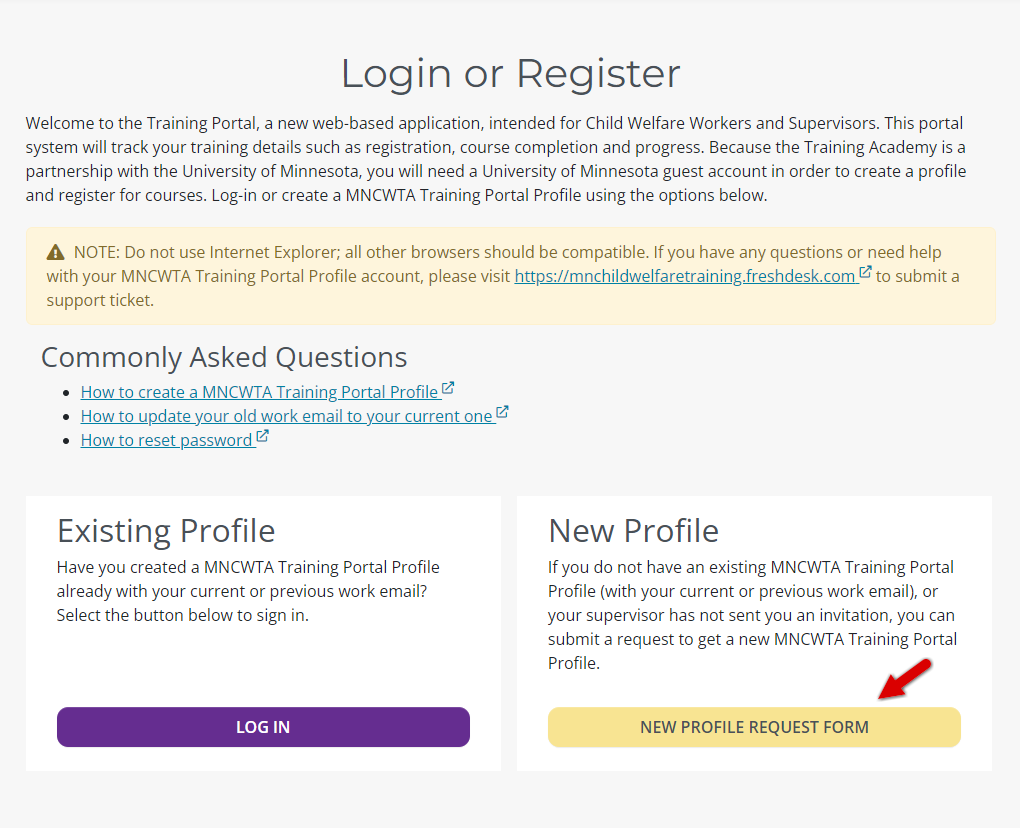
- Go to https://mnchildwelfaretraining.com/ to request a Training Portal Profile.

- Select “New Profile Request Form” from the "New Profile" section.
- Fill out the request form:
- Request your portal with your university/college email - unless you are a UMN or UMD student (see below).
- Important: UMN/UMD students must not use their @umn.edu or @d.umn.edu email address, as the portal cannot access training records associated with those accounts and will result in technical issues. Request a portal with an email that is NOT your student email or any alternate email tied to your student account.
- Current Title/Role: Select "Current Student/Intern"
- Start Date: Choose the date closest to the semester start
- Agency Type: Select "State"
- Agency: Choose your university/college
- Additional Comments: Note that you're a current IV-E student and include your coordinator’s name and email.
- Request your portal with your university/college email - unless you are a UMN or UMD student (see below).
- Select “Submit”. The training team will review and approve your request. This may take a day.
- Once approved, you’ll get an email notification with further instructions on how to finish creating your portal.
Log In and Complete Setup
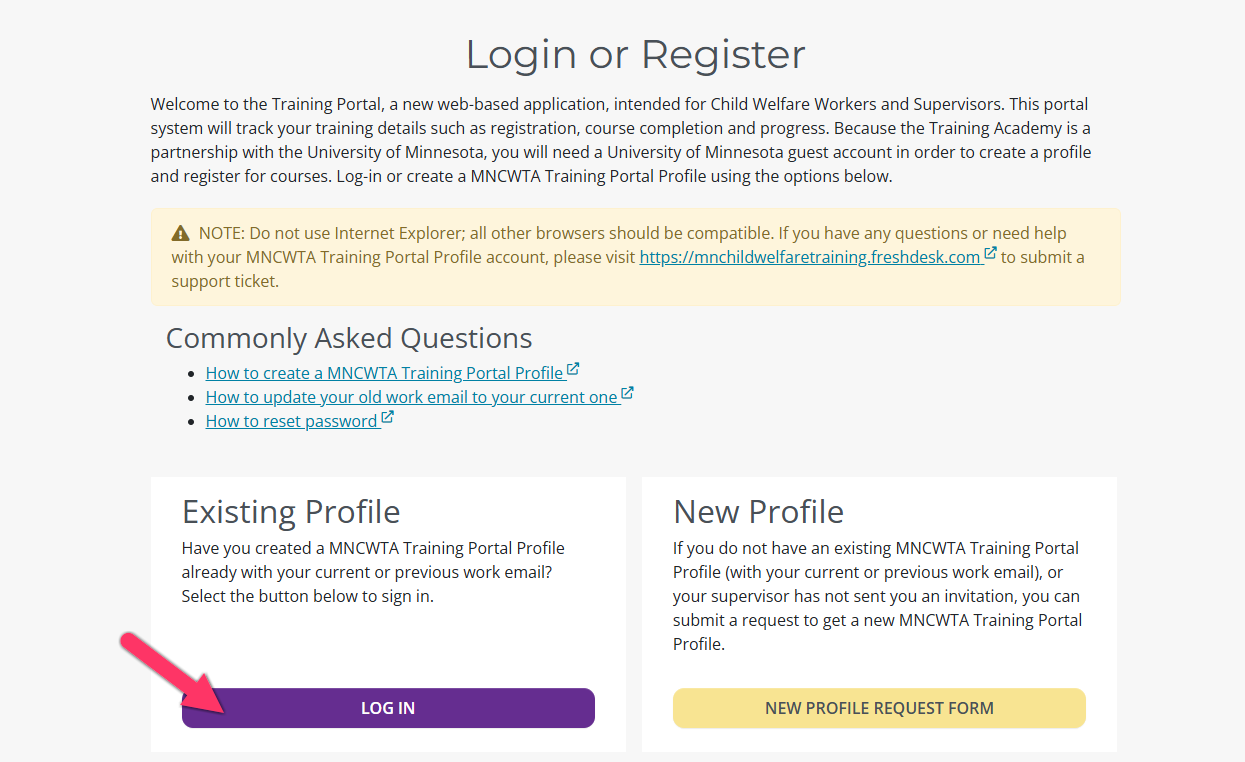
- Log into your MNCWTA Portal with your UMN guest account under "Existing User".
- Select "Training Portal" from the dropdown in the upper right.
- Take the site tour and select "Grant Permission" to access Canvas. Watch how to grant permission to Canvas with the tutorial video below:
Connect with your Coordinator
- Confirm your profile setup with your university’s IV-E coordinator.
- To accept an invitation from your coordinator, follow the steps in MSW/BSW Scholars Connect with Coordinators help article.
- If you are having issues adding your coordinator, submit a ticket on our Contact Us page.
Keep your Portal Profile Updated
- When you have a supervisor, you can add them to your Portal Profile.
- When you graduate, your coordinator will disconnect from your Portal Profile.
- When you graduate, do not create another Portal Profile or UMN guest account, instead submit a ticket on our Contact Us page to update your portal.
If you need additional assistance, submit a ticket on the Contact Us page. If you do not get an email confirming your ticket has been received, follow the steps in the Help Desk: No Response article.
Was this article helpful?
That’s Great!
Thank you for your feedback
Sorry! We couldn't be helpful
Thank you for your feedback
Feedback sent
We appreciate your effort and will try to fix the article