Follow these steps to view your scholar's course enrollment activity including:
- What courses they are enrolled in
- What courses you have assigned that they still need to enroll in
- Which courses they have incompletes or completes in
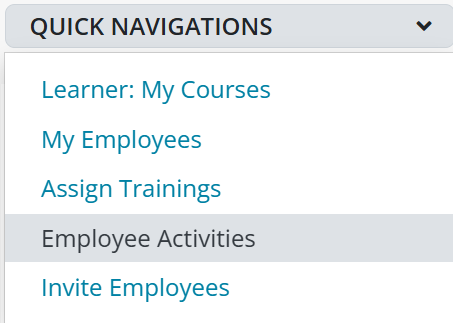
Step 1: Navigate to Scholar's Activities from Quick Navigation
In your Training Portal, select "Employee Activities" from the "QUICK NAVIGATIONS" dropdown menu.
Step 2: View Scholar's Activities
On the activities page, you can see a list of all your students. Select the "Show Activities" button for each student to view their course enrollment activity.

Each course will have a status color next to it as follows to let you know their enrollment progress:
 = learner is successfully enrolled in the course
 = learner has been assigned, and still needs to enroll in the course
 = learner has dropped their enrollment from the course
If you need additional assistance, submit a ticket on the Contact Us page. If you do not get an email confirming your ticket has been received, follow the steps in the Help Desk: No Response article.
Was this article helpful?
That’s Great!
Thank you for your feedback
Sorry! We couldn't be helpful
Thank you for your feedback
Feedback sent
We appreciate your effort and will try to fix the article